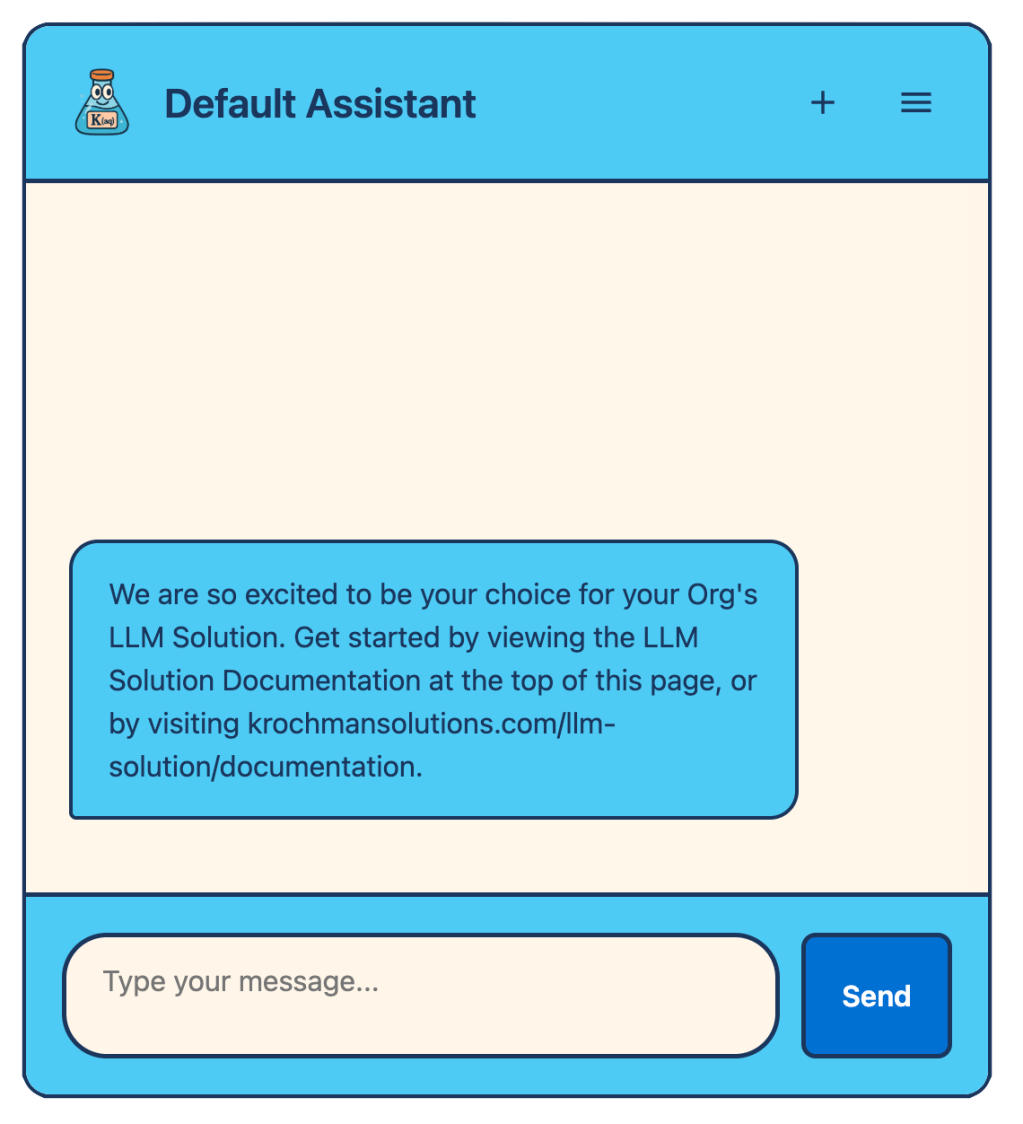
A comprehensive Large Language Model (LLM) integration solution for Salesforce, enabling AI-powered chatbots with Retrieval Augmented Generation (RAG) capabilities.
Named Credential Configuration
Important: Named Credentials are pre-configured for both providers. You only need to update the Authentication Parameter value in the Named Credential’s External Credentials.
OpenAI Configuration
- Go to Setup → Named Credentials → OpenAI External Credential
- Set Authentication Parameter to:
Bearer YOUR_API_KEY_HERE- Replace YOUR_API_KEY_HERE with your OpenAI API key
- Make sure to keep the “Bearer ” prefix (with a space)
- Get your API key from: OpenAI API Keys
- For more details, see the OpenAI Authentication Documentation
Ollama Configuration
- Go to Setup → Named Credentials → Ollama External Credential
- Set Authentication Parameter to:
None- Ollama typically doesn’t require authentication for local deployments
- If you’ve configured authentication, use the appropriate token format
- For more details, see the Ollama API Documentation
Core Functionality
- Dual LLM Provider Support:
- OpenAI integration for cloud-based LLM capabilities
- Ollama integration for local/self-hosted LLM deployment
- RAG (Retrieval Augmented Generation):
- Knowledge base management with embedding support
- Multiple source types: Salesforce Records and File Uploads
- Semantic search capabilities
- Configurable embedding models
- Chat Management:
- Real-time chat interface
- Chat session persistence
- Configurable chat transcript management
- Debug console for development and troubleshooting
Quick Start Guide
- Initial Setup:
- Select your preferred LLM provider (OpenAI or Ollama)
- Configure the Named Credential for your chosen provider
- Test the connection using the “Test Connection” button
- Knowledge Base Setup:
- Create a new Knowledge Base with a name and description
- Select knowledge type (Internal/External)
- Choose an embedding model
- Add knowledge sources (Salesforce Records or File Uploads)
- Chat Configuration:
- Configure chat transcript saving options
- Set up chatbot agents with specific knowledge bases
- Configure debug console settings if needed
Troubleshooting Tips
- Named Credential Issues:
- Verify credential configuration
- Check API key validity
- Use “None Selected” as emergency off switch
- Embedding Generation:
- Verify knowledge base configuration
- Check embedding model availability
- Monitor debug console for errors
 Krochman Solutions